


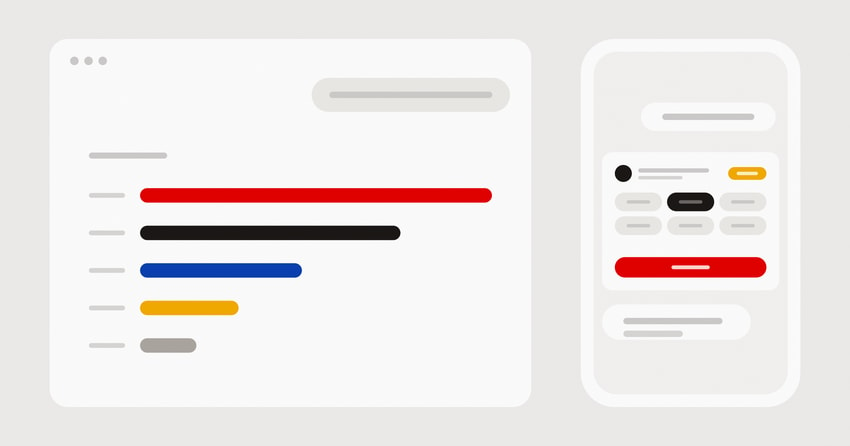
Agents are fast becoming the place where people start their work, and MCP applications built with ui:// resources provide your users with an interactive interface within their agents. Agent apps like Claude, Codex and others already render them, and you can read more about how they work in the MCP Apps extension to the Model Context Protocol (MCP).
Most work now starts with a question to an agent, and plain text is rarely a good way to show real business data. No one wants to read wall after wall of text for every single interaction. This is what a UI resource solves. It brings your user interfaces to the agents.
Tools only
Why are customers asking for refunds this quarter?
186 refunds, worth $41,200. Brakes 72, battery 54, sizing 31… Open the refunds dashboard ↗
BI tool
- 1.Sign in
- 2.Find the refunds dashboard
- 3.Filter to Q3, drill into brakes
I got a recall email. Is my bike affected?
Your Trailhead E2 is part of the recall. The fix is free. Book at bikeco.example/recall ↗
Bike Co website
- 1.Sign in
- 2.Find your bike
- 3.Pick a store and a time
With a UI resource
Why are customers asking for refunds this quarter?
Refunds by reason, Q3
- Brakes72
- Battery54
- Sizing31
- Delivery damage18
I got a recall email. Is my bike affected?
Trailhead E2 · affected, free fix
Book Thu 20 Nov, 10:30
Without UI resources, your users get directed to another app to finish the interaction. With UI resources, they finish the interaction without leaving the chat.
To see what this means for a business, we'll walk through an example scenario with a nationwide bike franchise, the same business from our AI search post. We'll look at two kinds of people who use agents.
- Your team, who use agents to look at and make sense of your data.
- Your customers, who use agents to access your systems and services.
How it works
There are three moving parts in the system that bring your user interfaces to the agents.
- The agent app is where people talk to the agent, like Claude or Codex. It uses an LLM and connects to MCP servers.
- The MCP server is the one that you build. It includes all your tools, along with UI resources, which are mostly HTML and JavaScript bundles served from
ui://addresses. - Your systems that sit behind the MCP server. These are mostly your data lakes, booking systems, customer records or anything else you already run.
When the user asks a question in Claude, the UI elements are rendered in the chat within a sandboxed iframe. In the MCP spec, the host is the agent app that renders the chat. The UI in the chat can't communicate with your systems directly, by default. It has to send requests to the host using JSON-RPC over postMessage, which the host then passes along as a request to your MCP server.
what the business buildsthe agent app, built by someone elsea message
The red parts are what you build. The agent app renders your UI. Your MCP server defines the schema the model uses to build the UI.
A tool tells the host it has a UI with a single field in its metadata, _meta.ui.resourceUri.
server.registerTool(
  'show_refund_report',
  {
    description: 'Show refunds for a quarter as an interactive report',
    inputSchema: { quarter: z.string(), layout: reportLayout },
    _meta: { ui: { resourceUri: 'ui://bikeco/report' } },
  },
  async ({ quarter }) => {
    const report = await warehouse.refunds(quarter)
    return {
      content: [{ type: 'text', text: summarise(report) }],
      structuredContent: report,
    }
  }
)
The tool's result comes back in two parts. content is text for the model, and structuredContent is data for your UI that the host keeps out of the model's context. That means the report can carry every row it needs without filling up the context window, while the model only sees a short summary to keep the conversation going.
The host lists your tools, sees which one has a UI, and loads its HTML.
Model
Host
Your UI
Your server
- Host to Your server:
tools/list
- Your server to Host:
show_refund_report
ui: ui://bikeco/report
- Host to Your server:
resources/read
- Your server to Host:
HTML + JS bundle
Pick a tab to see the messages at each stage, from the host finding the UI when it connects, to showing it when the tool runs, to passing the UI's calls back to your server.
Your team: exploring refund data with an agent
Let's say someone on your team wants to understand why customers are asking for refunds. They can ask Claude on their desktop, and instead of getting the answer as a paragraph of numbers, they get a report with charts right in the chat.
The model understands the question, decides how to present the answer using the available UI elements, and passes that layout as the tool's input. The host sends the input to your UI while the model is still writing it (ui/notifications/tool-input-partial), so the report streams in progressively.
The UI is also interactive, so you can tap the bars in the chart and see what they mean.
Text only
Press “Ask the question” to start.
With a UI resource
Press “Ask the question” to start.
Ask the question to see both answers side by side. On the right, watch the layout stream in, then tap Brakes.
The numbers you see in the UI are based on actual data returned by your databases, not something the model guessed or hallucinated. You can design multiple types of charts and reports, and the model will choose the right one based on the context. All your data shows up within the agent, and you can interact with it and query it in natural language without ever opening your data visualisation tool.
Your customers: booking a fix with an agent
Let's say your franchise issues a recall on some of its bikes. Your customers are going to want to know if their bike is affected.
Your customers can ask Claude about the recall right from their phone. They'll need to install your company's connector and sign in, so the server knows who the user is. You can show the customer's bike along with a few open service slots, and your customers can confirm their booking directly from their chat session.
The booking itself goes through book_service, an app-only tool. Models can't invoke app-only tools directly, and only user interactions can invoke them. So the model can find the bike and explain the recall, but it can't book anything on the customer's behalf. Once the customer books, the UI lets the model know with ui/update-model-context, so the agent can answer any follow-up questions about the booking.
Text only
Bike Co connector installed
Press “Ask the question” to start.
With a UI resource
Bike Co connector installed
Press “Ask the question” to start.
Ask the question to see both answers side by side. On the right, pick a store and a time, then book.
Anything that changes data or costs money is wired to a button in your UI using app-only tools. This is how you can ensure those actions are actually initiated by your users. And the connector you build is spec-driven and works the same in every agent app that supports MCP applications, so you only build it once.
Things to know
Support for MCP UI resources varies between hosts, and some don't render them at all. Those hosts show the content text instead, so it's worth writing it as a good answer on its own. It also helps to think of each UI as a card rather than a whole app. Keep each one to a single job, and leave longer workflows in your product.
The sandbox is strict too. By default your UI can't load anything from the network, so you declare the domains it needs and the host decides what to allow. And getting a connector ready to install takes some setup, with OAuth, a listing and a review, much like any app store.
Meet people where they already work
Your team and your customers are already asking agents for help. With MCP applications, the answer they get can be your chart or your booking form, built once and shown in every agent app that supports them. The same server works for the team inside your business and the customers outside it.
If you'd like help designing and building MCP applications for your business, get in touch.